
Complete Guide
Open an OJS-based journal, for example: https://miloscholariajournal.com/miloscholaria. You can use your campus journal or another journal that fits your article's field.
This is located in the top right corner. Then, complete the registration form:
- Username and password
- Full name and email
- Affiliation, or where you are affiliated — you can fill in your institution
- Select "Author" if asked to choose a role
- Check all terms and policies, if any. Also read the guidelines, which usually contain instructions or rules for publishing in the journal
- Click Submit once you're done
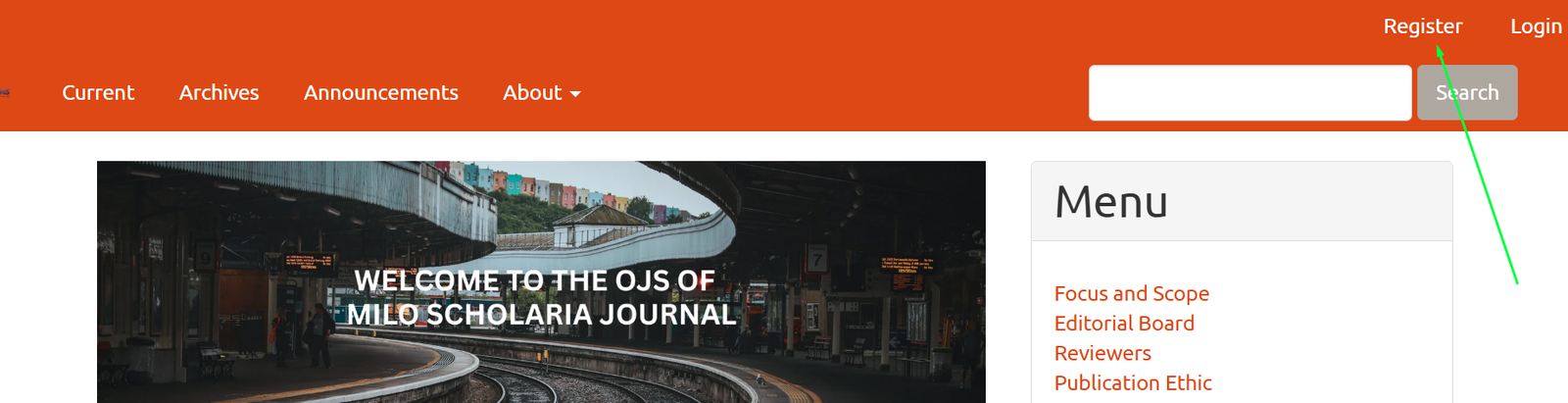
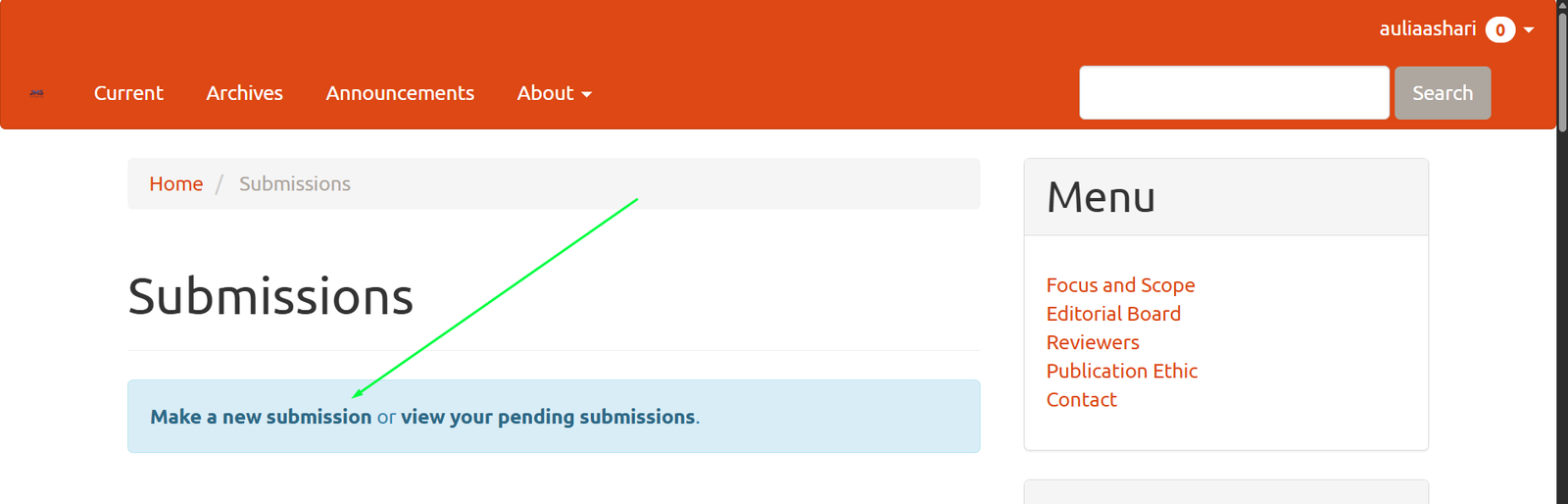
Note: If you're not logged in automatically, you can click "Login" and sign in using the account you just created. Below is what it looks like once you're logged into the journal platform.
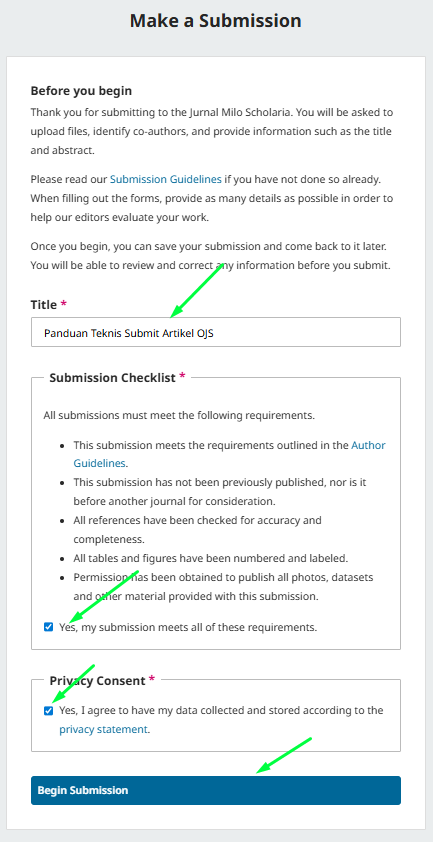
- At this stage, you'll be asked to enter the article title, agree to the journal's terms and policies by checking the checklist, and consent to the data usage permissions. It's important to read the Submission Guidelines via the blue link provided. Once done, click Begin Submission.
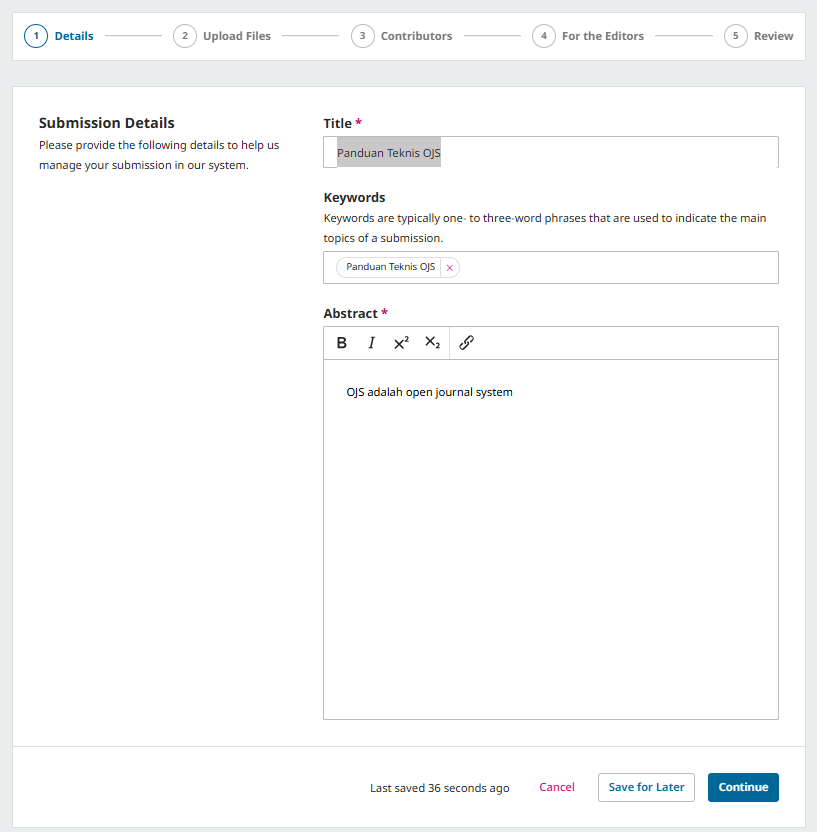
- Bagian 1: Make a Submission Details
Title: Enter your article's title.
Keywords: Choose 3–5 words or short phrases that represent the content of your article. Use words that frequently appear in the article or reflect its main theme. Tips: use lowercase letters, no semicolons, and separate them with commas; avoid long phrases; avoid uncommon abbreviations.
Abstract: Write a summary of the article's content that gives a brief overview of what is discussed, the methodology, and the results or objectives.
Then, click Continue.
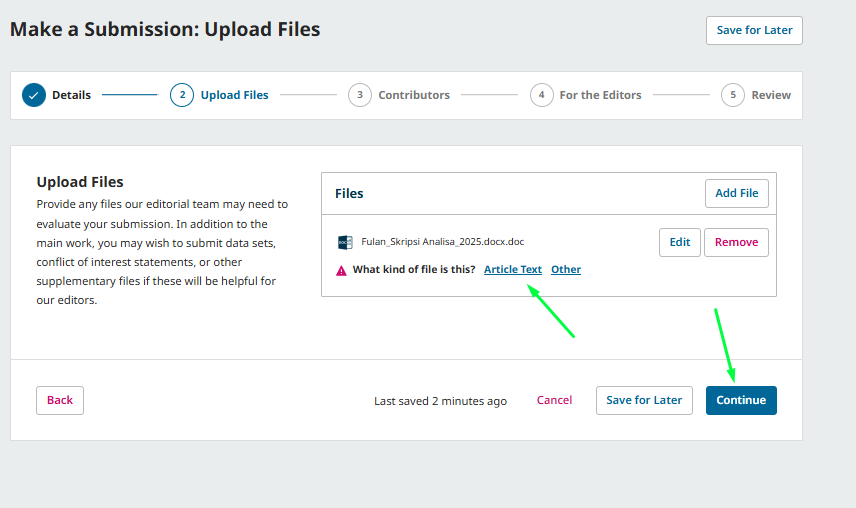
- Bagian 2: Upload Files
In the section for uploading your journal file (.docx or .pdf), click Add File > then select the type of file you're uploading under What kind of file is this? — you can choose Article Text or Others > Continue.
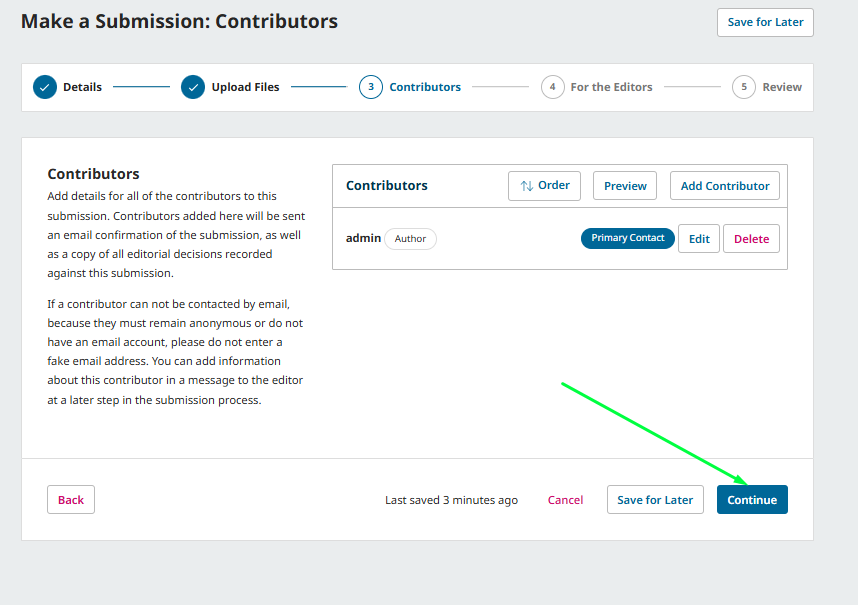
Fill in the author details with:
- Given Name: The author's first name.
- Family Name: The author's last name (if there isn't one, this can be left blank or filled in the same as the first name).
- Email: The author's active email address.
- Role: Select Author.
- Primary Contact: Check this box if the author is the corresponding author (usually yourself).
- You can add more than one contributor, then arrange the order of authors if needed.
Important: Don't use a fake email just to be able to proceed. If an author doesn't have an email, explain this in the "Message to the Editor" field in the next step.
Once all contributors have been added, click Continue.
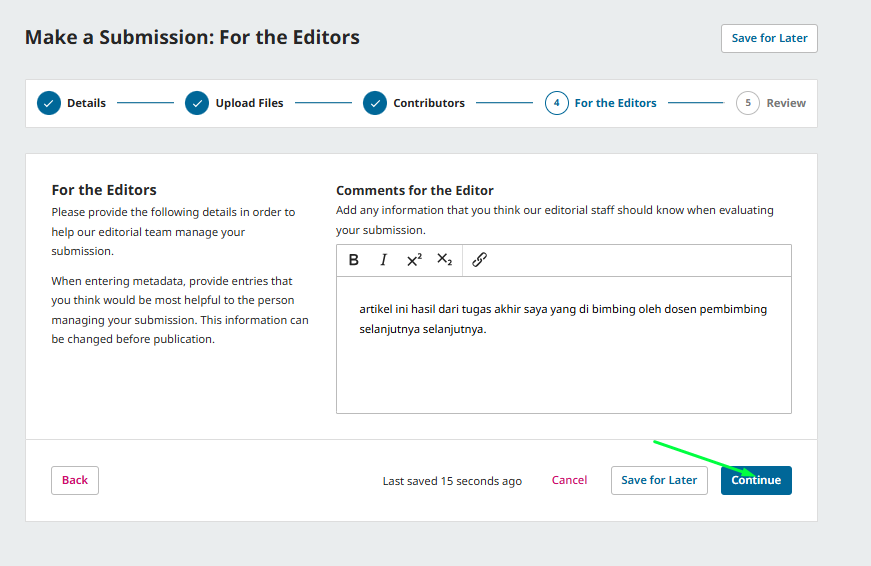
- Section 4: For the Editors
This section is used to convey messages or important information to the journal's editorial team. Although this is optional, this field is very useful if you want to provide additional explanation regarding the article you are submitting.
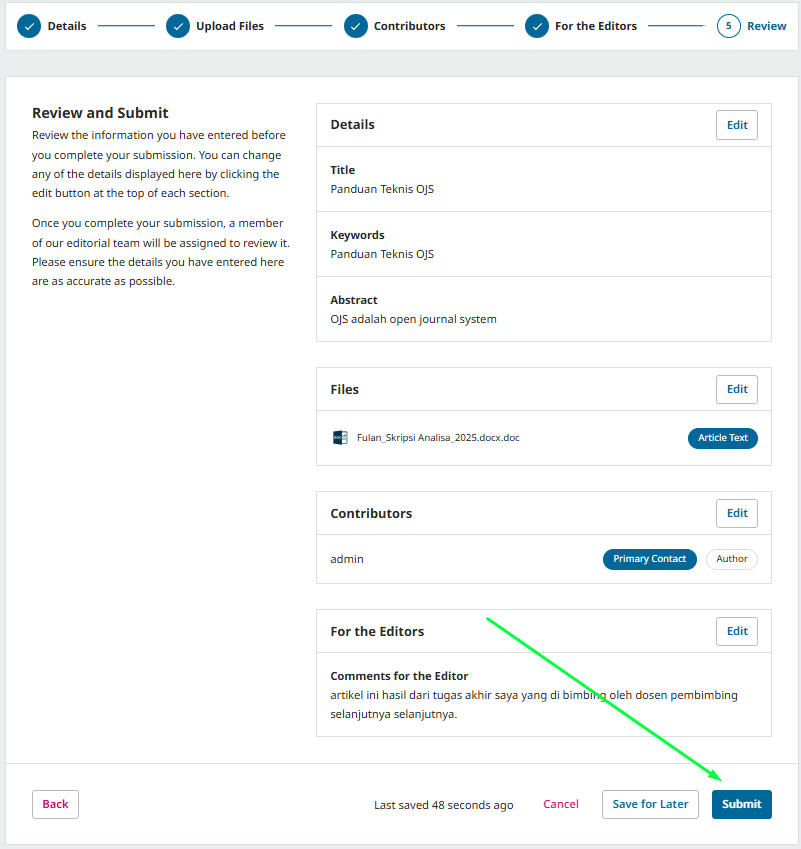
- Section 5: Review
This is the final stage to review all the information once more before you actually click Submit.
That concludes the article on How to Submit a Journal Article on OJS — we hope it's helpful.